Mac

Things I can do on my Mac but not on my iPad

  • See the full SMTP headers of an email, specially useful when you are trying to track down which email alias spam was addressed to.
  • Use an external UVC camera instead of the built-in one. I don’t trust the Mac Zoom app with its horrendous security record and the iOS sandbox is much more secure, but I’d also like to use my Sony RX1RII camera with an Elgato Camlink 4K for its superior image quality. Yes, I know using the web-based Zoom client is much more secure for you (because it is also sandboxes, in this case by the browser), but it also lacks end-to-end encryption.
  • SSH using ed25519-sk keys backed by a U2F hardware key like a Yubikey or trusting SSH certificates (yes, I know Termius supports it but subscription software is never acceptable).

PSA: iCloud Private Relay can make Safari on your iPad unusable

After upgrading my iPad to iPadOS 15.5, Safari became unusable. It would take forever to load the Reddit login page, and many others like Dilbert.com. Opening the same in Firefox Focus had no issues.

Going into Settings / Safari / Privacy & Security / Hide IP Address and disabling it fixed this for me. Alternatively you can disable it only for specific networks (Settings / Wi-Fi / ⓘ / Limit IP Address Tracing / Off).

It seems Apple turned on iCloud Private Relay on by default for Safari in iPadOS 15.5 and presumably iOS 15.5 as well. Macs are probably next.

I can only speculate why turning it off fixes the breakage, but:

  • The feature routes your calls through Akamai then CloudFlare, and for whatever reason CloudFlare doesn’t seem to like my ISP, I often encounter their “prove you are human” challenges.
  • It may also be because Apple overrides your DNS settings for this feature to work, and if your network is locked down with something like Pi-Hole to prevent trackers, those DNS requests may not be getting through. I don’t want IoT devices or the like to bypass my DNS server, which uses Wireguard to my Cloud VPN server to ensure my ISP cannot snoop on my DNS requests (a setup I believe more secure and private than Apple’s), nor CloudFlare, nor the UK Police State. I haven’t blocked DNS-over-HTTPS servers yet as this guy does but it’s on my list. This might be interfering with iCloud Private Relay.
  • It may also be sabotage, as Rui Carmo points out, or as John Oliver memorably calls it, “Cable Company F∗∗∗ery”.

Batch-converting HEIC images to JPEGs on the Mac

TL:DR working around Apple proprietary brain damage

I use Lightroom 6 to manage my photo collection, although it is falling victim to bit rot (e.g. the face recognition module no longer works, apparently due to a licensing logic time bomb in the code). Exploitative pay-forever software subscriptions are simply unacceptable so I will not yield to Adobe’s Creative Clout bondage, and since Lightroom will not work in newer versions of MacOS, that means I am working on migrating to Darktable, albeit very slowly.

My wife does all her photography on her iPhone, and while the image quality is poor, she does take a great many photos and videos of our daughter. I decided to integrate them in my workflow.

To do so, I installed the free and excellent Photobackup app on her iPhone. It allows backing up her photos and videos using rsync to my ZFS backup server, from which I rsync them to my Mac, and then use my linkonce tool to create a parallel file hierarchy that mirrors it, but so that when I delete a photo in Lightroom, it stays deleted. That way I can remove duds without having them pop back up in Lightroom every time I do a sync.

I just realized I was missing a large number of images because they are in Apple’s obnoxious HEIF format, that they switched to around the time they introduced the mostly useless Live Photos misfeature. Lightroom 6 does not recognize the format. While you can batch convert and export HEIC files to JPEG in Preview.app, it is still a manual process.

I investigated what command-line tools are available that could be run from a cron job and there are surprisingly few. GraphicsMagick sensibly refuses to support the format because of patent concerns. Most of the others require compiling an intimidating stack of dependencies first, and because HEIF is based on the H.265 HEVC video codec, an ostensibly open (in name only) ISO format that is heavily encumbered with patents, so is HEIF and it is probably illegal to use those tools like heic2jpeg.

I opted instead to write my own heic2jpeg (no relation to the previous tool). It is a very basic conversion utility using Apple’s CoreImage framework, to piggyback on Apple’s patent licenses, and as a side benefit, it will preserve the image metadata including geoloc. The flip side is that means the tool can only run on a Mac and not on Linux or Illumos, but I can live with that.

It is also my first ever Swift project. A nice expressive language in the vein of Python or Go (except with Apple’s grotesquely long API names), but I do not expect to use it much, as I have grown disillusioned with Apple’s policies and software quality, and have no intention of indenturing myself as a sharecropper in Tim Cook’s plantation any more than to Adobe’s.

The code is in heic2jpeg.swift

To build it, assuming Swift or Xcode is installed on your Mac, just run:

swiftc -O -o heic2jpeg heic2jpeg.swift

My sync script (part of my backup script) then runs something like:

find $HOME/Pictures -name \*.HEIC -print0 | xargs -0 -P 12 -t -n 10 heic2jpeg --delete

This will run 12 processes in parallel, consuming 10 files each until all HEIC are converted (or if already converted, left alone). I find the optimal setting to be 150% to 200% of the actual cores on your system (not including Intel’s fake hyperthreading cores, which do not count).

import Foundation
import CoreImage

var jpegQuality = 0.90
let context = CIContext(options: nil)
let options = NSDictionary(
    dictionary: [kCGImageDestinationLossyCompressionQuality:jpegQuality]
)
var delete:Bool
var filename:String?
delete = false
for i in 1..<Int(CommandLine.argc) {
    filename = CommandLine.arguments[i]
    if filename == "-delete" || filename == "--delete" {
        delete = true
        continue
    }
    let srcURL = URL(fileURLWithPath:filename!)
    let destURL = srcURL.deletingPathExtension().appendingPathExtension("jpg")
    var exists:Bool
    do {
        exists = try destURL.checkResourceIsReachable()
    } catch {
        exists = false
    }
    if exists {
        print("skipping \(filename ?? "???")")
    } else {
        print("converting \(filename ?? "???")")
        let image = CIImage(contentsOf: srcURL)
        try! context.writeJPEGRepresentation(
            of:image!,
            to:destURL,
            colorSpace: image!.colorSpace!,
            options:options as! [CIImageRepresentationOption : Any]
        )
        if delete {
            print("deleting \(filename ?? "???")")
            try! FileManager.default.removeItem(at:srcURL)
        }
    }
}

Apple iCalendar's buggy SNI

TL:DR If you use Apple’s calendar client software, do not run the server on an IP and port shared with any other SSL/TLS services.

I run my own CalDAV calendar server for my family and for myself. For a very long time I used DAViCal, but it’s always been a slight annoyance to set up on Apple devices because they don’t like DAViCal’s https://example.com/davical/caldav.php/majid URLs. What’s more, recent versions of iCalendar would pop up password prompts at random, and after re-entering the password a couple of times (once is not enough), would finally go on and work. The various devices would also all too often get out of sync, sometimes with the inscrutable error:

Server responded with “500” to operation CalDAVAccountRefreshQueueableOperation

requiring deleting the calendar account and recreating it by hand.

I tried replacing DAViCal with Radicale today, with the same flaky user experience, and I finally figured out why: Apple uses at least a couple of daemons to manage calendar and sync, including dataaccessd, accountsd and remindd (also CalendarAgent depending on your OS version). It seems some or all of them do not implement Server Name Indication (SNI) consistently. SNI is the mechanism by which a TLS client indicates what server it is trying to connect to during the TLS handshake, so multiple servers can share the same IP address and port, and is an absolutely vital part of the modern web. For example many servers use Amazon Web Services’ Elastic Load Balancer or CloudFront services, which are used by multiple clients, if Amazon had to dedicate a separate IP address for each, it would break their business model1.

Sometimes, those daemons will not use SNI, which means they will get your default server. In my case, it’s password-protected with a different password than the CalDAV one, which is what triggers the “enter password” dialog. At other times, they will call your CalDAV server with dubious URLs like /.well-known/caldav, /principals/, /dav/principals/, /caldav/v2 and if your server has a different HTTP password for that and sends back a HTTP 401 status code instead of a 404 Not Found, well, that will also trigger a reauthentication prompt.

Big Sur running on my M1 MacBook Air seems to be more consistent about using SNI, but will still poke around on those URLs, triggering the reauthentication prompts.

In other words, the only way to get and Apple-compatible calendar server running reliably is to dedicate an IP and port to it that is not shared with anything else. I only have one IP address at home where the server runs, and I run other vital services behind HTTPS, so I can’t dedicate 443 to a CalDAV server. Fortunately, the configuration will accept the syntax example.org:8443 to use a non-standard port (make sure you use the Advanced option, not Automatic), but this is incredibly sloppy of Apple.


  1. Amazon does in fact have a Legacy Clients Support option, but they charge a $600/month fee for that, and if you need more than two, they will demand written justification before approving your request. ↩︎

Exporting secrets from the Lockdown 2FA app

The Lockdown app mentioned in this article was last updated in 2015, and if you don't already use it, I would not recommend your adopting it.

I am (very) slowly migrating away from the Mac to Ubuntu Linux as my main desktop operating system. The reasons why Apple has lost my confidence are:

  • The execrable software quality of recent releases like Catalina (I plan on sticking with Mojave until I have migrated, however long that takes).
  • Apple’s increasing locking down of macOS in ways antithetical to software freedom, e.g. SIP or the notarization requirements in Catalina with the denial of service implications
  • The fact they no longer even pretend not to price-gouge on the Mac Pro. My days of buying their professional workstations every 5 years have come to an end after 15 years (PowerMac G5, Nehalem Mac Pro, 2013 Mac Pro)
  • As the iPhone market is saturating, in their eagerness to come up with a replacement growth engine in “services”, they are pushing app developers towards the despicable and unacceptable subscription licensing model
  • The butterfly keyboard fiasco exemplifies the contempt in which the company seems to hold its most loyal customers

On the plus side, ThinkPads have decent keyboards, unlike all Apple laptops since at least 2008, the LG Gram 17 is both lightweight, powerful and its huge screen is a boon to my tired eyes, and I am favorably impressed with the deep level of hardware integration offered by Ubuntu (e.g. displaying the logo and boot status in the UEFI stages of boot), even if I am not enamored of the software bloat or systemd.

One of the tasks in my migration checklist is to find a replacement for my TOTP two-factor authentication solution, which is currently the Lockdown app on iOS, iPadOS and MacOS (based on this recommendation, not to be confused with the Lockdown firewall/VPN app). I don’t trust Authy, they have a record of security failures introduced by their attempts to extend standard TOTP with their proprietary garbage, but I digress…

Thus I need to export Lockdown secrets. The iOS app can print or email a PDF with QR codes as a backup, but that’s not a very usable format for migration.

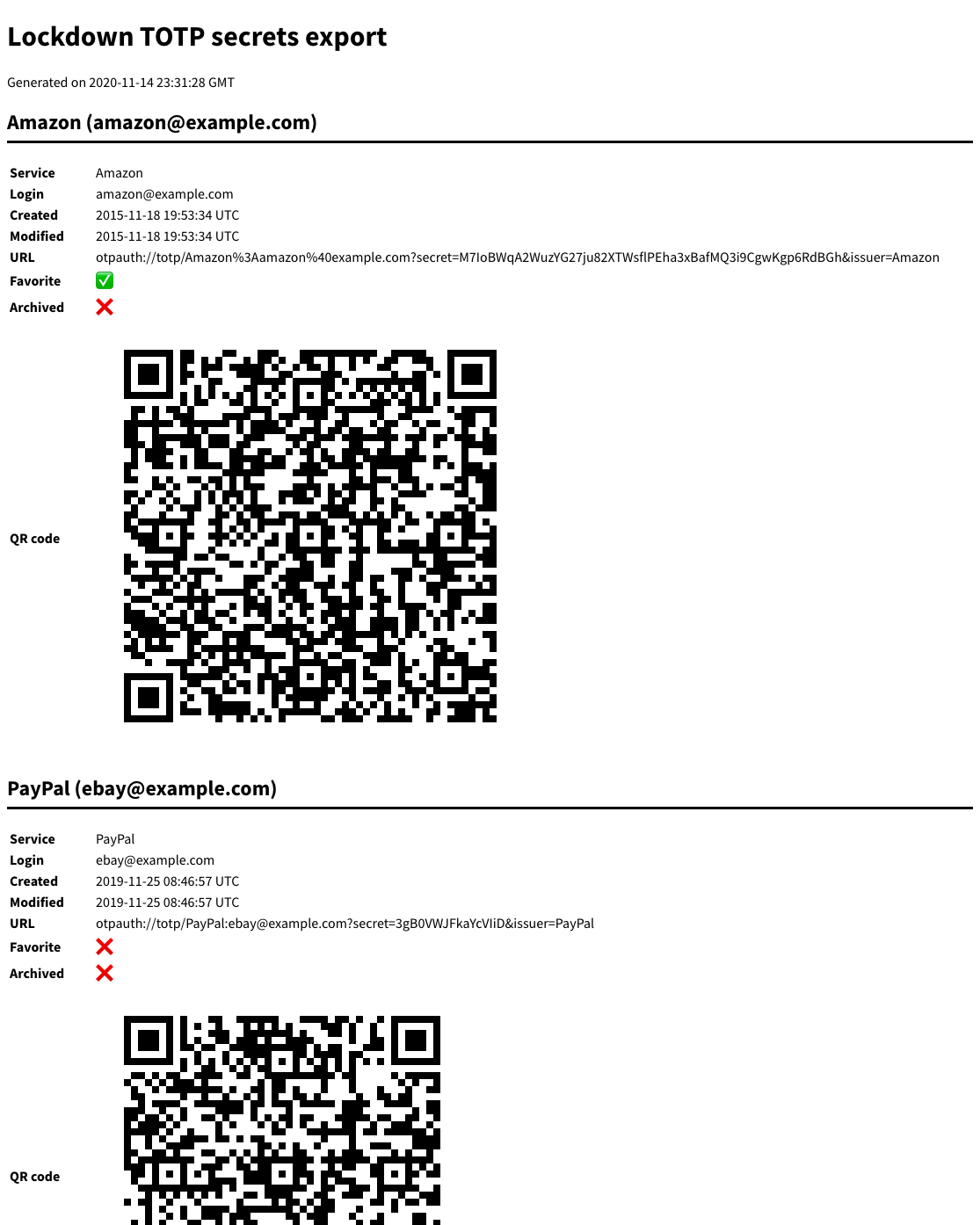
As I had to add a new TOTP secret to the app recently, that was the impetus to do this as a weekend project. I implemented a small utility called ldexport in Go to decode Lockdown for Mac’s internal file into either JSON or HTML format. Here are some simulated samples:

[
    {
        "Service": "Amazon",
        "Login": "amazon@example.com",
        "Created": "2015-11-18T19:53:34.969532012Z",
        "Modified": "2015-11-18T19:53:34.969532012Z",
        "URL": "otpauth://totp/Amazon%3Aamazon%40example.com?secret=M7IoBWqA2WuzYG27ju82XTWsflPEha3xBafMQ3i9CgwKgp6RdBGh\u0026issuer=Amazon",
        "Favorite": true,
        "Archived": false
    },
    {
        "Service": "PayPal",
        "Login": "ebay@example.com",
        "Created": "2019-11-25T08:46:57.253684043Z",
        "Modified": "2019-11-25T08:46:57.253684043Z",
        "URL": "otpauth://totp/PayPal:ebay@example.com?secret=3gB0VWJFkaYcVIiD\u0026issuer=PayPal",
        "Favorite": false,
        "Archived": false
    },
    {
        "Service": "Reddit",
        "Login": "johndoe",
        "Created": "2020-08-07T19:58:37.930042982+01:00",
        "Modified": "2020-08-07T19:58:37.930042982+01:00",
        "URL": "otpauth://totp/Reddit:johndoe?secret=nDTxDMI6bEgVpHWCViZjDFhXKH1bysRa\u0026issuer=Reddit",
        "Favorite": true,
        "Archived": false
    },
    {
        "Service": "GitHub",
        "Login": "",
        "Created": "2016-05-04T19:04:12.495128989+01:00",
        "Modified": "2017-04-04T06:33:10.641680002+01:00",
        "URL": "otpauth://totp/github.com/johndoe?issuer=GitHub\u0026secret=bXh5qmeTMzcatKKz",
        "Favorite": false,
        "Archived": false
    },
    {
        "Service": "Google",
        "Login": "johndoe@gmail.com",
        "Created": "2015-11-13T05:06:07.103500008Z",
        "Modified": "2015-11-13T05:06:07.103500008Z",
        "URL": "otpauth://totp/Google%3Ajohndoe%40gmail.com?secret=o5MvqdWDt7ZEHHSTuH6rCAUr4M6ozGQD\u0026issuer=Google",
        "Favorite": false,
        "Archived": false
    }
]