Mac

iTunes 7, one step forward, one step back

I upgraded to iTunes 7 yesterday. This new version adds a feature opera and classical fans were clamoring for, gapless playback. Often, two or more consecutive tracks must be played without interruption. CD players do that effortlessly, surprisingly few MP3 players can. A pause, however slight in the middle of an aria can be incredibly jarring. Apple took its sweet time, but they eventually delivered (although it is not clear if all older iPod models will support this beyond the 5G video-capable iPod). You have to explicitly flag albums that must be played without gaps by selecting the “gapless album” option.

I still have to get used to the cosmetic changes in the new version. I liked the green musical note icon better than the new blue one. The new style looks a little flat and one-dimensional, just like many Windows XP applications have a flat web page inspired look compared to the beveled buttons and controls of the CUA-based Windows 2000 interface.

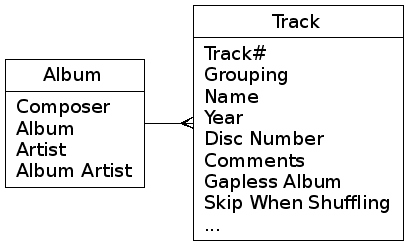
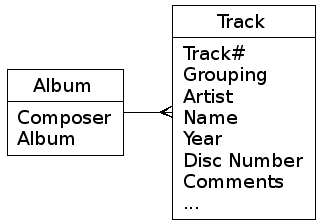
iTunes 7 is also markedly different in behavior from previous versions in how it handles albums. To keep the user interface easily understandable for the general public, all tracks are shown as a single flat database, but behind the scenes, iTunes implicitly normalizes this into something that looks like the following relational data model:

old iTunes ER model

iTunes 7 added a few new fields, including “Album Artist”, which seems to be of dubious utility. I described in a previous article my coding conventions to work around the fact iTunes was obviously designed by people with absolutely no clue about classical music. Unfortunately, iTunes 7 does not rectify this situation, but what’s worse, they also changed the key for the album to include both Artist and Album Artist:

iTunes 7 ER model

I can understand why they did this – if you have several alternative versions of the same work by the same composer, but by different artists, they would be played in intermingled order, which is why I append (2), (3) and so on to multiple interpretations of the same work (by decreasing order of preference).

On the other hand, the new behavior means that if you assigned different artists to tracks in an album (in a classical piece or an opera, you seldom have all the tracks played by the same artists), iTunes mistakenly thinks you have several albums, one for each possible value for artist, and this breaks libraries that worked with previous versions. iTunes 6 and earlier would not care and play them all in the order implied by the Track# field. iTunes 7 will see them as different albums and you will get a nasty surprise when you play the album in shuffle mode, as it will skip to a completely different album halfway through.

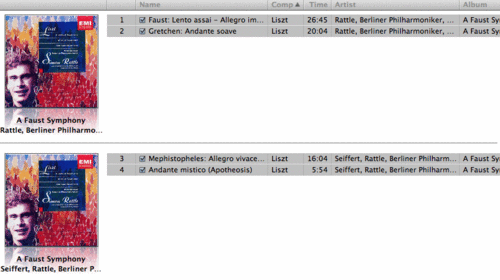
Let me illustrate with the album I first encountered the problem with. The last two tracks have Peter Seiffert credited, whereas the first two do not. The list view shows the albums sorted properly, like previous versions of iTunes:

iTunes 7 list view

The album view makes it clear what iTunes thinks is happening:

iTunes 7 album view

The only work-around this today is to force all tracks in an album to have the same Artist field. I will need to write an AppleScript to identify all tracks that need to be normalized thus, even if this means a loss of information. A further quirk is that the implicit normalization is apparently done at iTunes startup, so you need to restart iTunes for the changes to have an effect.

Update (2006-11-03):

I auto-updated to 7.0.2 today and finally figured out something that has been puzzling me for a couple of weeks now. My copy of Poulenc’s Stabat Mater (Battle/Ozawa/Boston/Tanglewood) would not play as a single album, even though it is displayed as such in the album view. I have “shuffle by album” activated, and it would skip from any track in that specific album to a completely unrelated one. Even if I pinned it down by entering “poulenc stabat” in the search box so no other album could be selected, iTunes would skip from track 1 to a completely random track, instead of moving on to track two.

Apparently iTunes shuffles using a different algorithm than the album grouping. I have another album that has the exact same title “Stabat Mater”, albeit one by Pergolesi, not Poulenc (and four others by Dvořak, Szymanowski and Vivaldi, but the opus or RV number differentiates the album titles). Having two albums with the same title seems to confuse iTunes no end. I don’t want to mangle my album names just to appease iTunes 7, but I found a work-around: just change the mostly useless “Disc Number M out of N” field so the two albums with conflicting titles have different disc numbers, and they will collide no more. Better yet, use the CD number field to uniquely identify each CD in your collection, instead of just within a boxed set. Once again, you need to restart iTunes for this to kick in.

Transfer complete. Or is it?

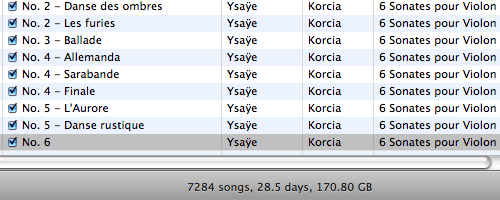
I finally completed my CD ripping project and now have lossless copies of all my CDs (and the CD-audio layer of my SACDs) on my Mac.

iTunes status bar

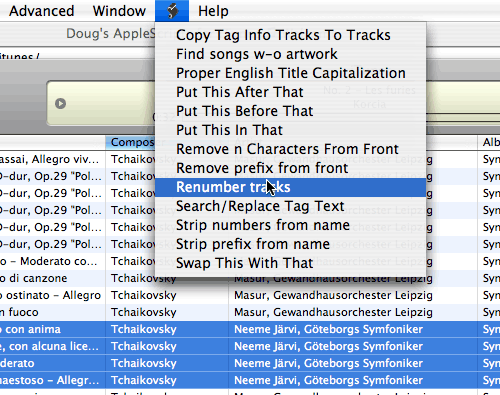
As I mentioned before, the bulk of the work is tagging the music with correct metadata, locating cover art when the majority of my CD jewel cases and booklets are moldering in a cellar in France. (Amazon is helpful, specially now that it allows users to upload their own scans of cover art). Doug’s AppleScripts for iTunes make short work of normalizing CDDB metadata like correcting the people who stuff the composer name in the title or vice versa.

iTunes scripts menu

I wrote my own scripts to tackle these common operations:

  1. Strip numbers from titles. That’s the “Track #” field’s job. This script requires the Satimage AppleScript Regex OSAX plug-in to work.
  2. Renumber a selection sequentially, so I can split a CD into its constituent parts and renumber them independently from each other or the original CD track order.
  3. Strip prefix strings from titles.

This does not mean I am finished, however. About 3/4 of the way through, I realized iTunes is far from perfect at extracting CD audio. For various reasons related to how the Redbook CD audio format was designed without computers in mind, it is very hard to get a perfect, repeatable rip from one attempt to the other. iTunes has an “error-correction” option that seems not to have any effect. For reliable ripping, you have to use specialized programs like EAC on Windows and a cdparanoia-based program like Max on OS X. This complicates the workflow as Max is slightly buggy, and nowhere as good at managing metadata as iTunes is, so the one-step import in iTunes becomes a less streamlined affair:

  1. Rip the CD to AIFF in Max
  2. Import the AIFF into iTunes
  3. Number the tracks (very important!) using my “Renumber tracks” script
  4. Convert to Apple lossless
  5. Copy the metadata from CDDB using Doug Adams’ Copy info tracks to tracks script.
  6. Add album cover art and mention the track was ripped with Max
  7. Backup to another hard drive!

The good thing is, now that I have collected the metadata and cover art, I can rerip trouble tracks with clicks or pops, and copy the metadata in one step using Doug’s action, so re-ripping won’t be as much of a hassle as the first time. The next step is to convert everything to FLAC so I have a non-proprietary library that works with SlimServer on my Solaris home server.

If you are not as obsessive about your music metadata as I am, the process will be much easier if you just use whatever CDDB supplies you. In any case, remember, just say No! to DRM-infested lossy-compressed tracks from the iTunes Music Store.

Put whiny computers to work

I have noticed a trend lately of computers making an annoying whining sound when they are running at low utilization. This happens with my Dual G5 PowerMac, the Dells I ordered 18 months ago for my staff (before we ditched Dell for HP due to the former’s refusal to sell desktops powered with AMD64 chips instead of the inferior Intel parts), and I am starting to notice it with my MacBook Pro when in a really quiet room.

These machines emit an incredibly annoying high-pitched whine when idling, one that disappears when you increase the CPU load (I usually run openssl speed on the Macs). Probably the fan falls in some oscillating pattern because no hysteresis was put into the speed control firmware. It looks like these machines were tested under full load, but not under light load, which just happens to be the most common situation for computers. The short-term work-around is to generate artificial load by running openssl in an infinite loop, or to use a distributed computing program like Folding@Home.

Load-testing is a good thing, but idle-testing is a good idea as well…

Taming the paper tiger

A colleague was asking for some simple advice about all-in-one printer/copier/fax devices and got instead a rambling lecture on my paper workflow. There is no reason the Internet should be exempted from my long-winded rants, so here goes, an excruciatingly detailed description of my paper workflow. It shares the same general outline as my digital photography workflow, with a few twists.

Formats

The paperless office is what I am striving for. Digital files are easier to protect than paper from fire or theft, and you can carry them with you everywhere on a Flash memory stick. As for file formats, you don’t want to be locked in, so you should either use TIFF or PDF, both of which have open-source readers and are unlikely to disappear anytime soon, unlike Microsoft’s proprietary lock-in format of the day.

TIFF is easier to retouch in an image editing program, but:

  1. Few programs cope correctly with multi-page TIFFs
  2. PDF allows you to combine a bitmap layer to have an exact fac-simile with a searchable OCR text layer for retrieval, TIFF does not.
  3. TIFF is inefficient for vector documents, e.g. receipts printed from a web page.
  4. The TIFF format lacks many of the amenities designed in a format like PDF expressly designed as a digital replacement for paper.

Generating PDFs from web pages or office documents is as simple as printing (Mac OS X offers this feature out of the box, for Windows, you can print to PostScript and use Ghostscript to convert the PS to PDF.

Please note the bloated Acrobat Reader is not a must-have to view PDFs, Mac OS X’s Preview does a much better job, and on Windows Foxit Reader is a perfectly serviceable alternative that easily fits on a Flash USB stick. UNIX users have Ghostscript and the numerous UI wrappers that make paging and zooming easy..

Acquisition

You should process incoming mail as soon as you receive it, and not let it build up. If you have a backlog, set it aside and start your new system, applicable to all new snail mail. That way the situation does not degrade further, and you can revisit old mail later.

Junk mail that could lead to identity theft (e.g. credit card solicitations) should be shredded or even better, burnt (assuming your local environmental regulations permit this). if you get a powerful enough shredder, it can swallow the entire envelope without even forcing you to open it. Of course, you should only consider a cross-cut shredder. Junk mail that does not contain identifiable information should be recycled. When in doubt, shred. Everything else should be scanned.

Forget about flatbed scanners, what you want is a sheet-fed batch document scanner. It should support duplex mode, i.e. be capable of scanning both sides of a sheet of paper in a single pass. For Mac users Fujitsu ScanSnap is pretty much the only game in town, and for Windows users I recommend the Canon DR-2050C (the ScanSnap is available in a Windows version, but the Canon has a more reliable paper feed less prone to double-feeding). Either will quickly scan a sheaf of paperwork to a PDF file at 15–20 pages per minute.

Filing

Paper is a paradox: it is the most intuitive medium to deal with in the short-term, but also the most unwieldy and unmanageable over time. As soon as you layer two sheets into a pile, you have lost the fluidity that is paper’s essential strength. Shuffling through a pile takes an ever increasing amount of time as the pile grows.

For this reason, you want to organize your filing plan in the digital domain as much as possible. Many experts set up elaborate filing plans with color-coded manila folders and will wax lyrical about the benefits of ball-bearing sliding file cabinets. In the real world, few people have the room to store a full-fledged file cabinet.

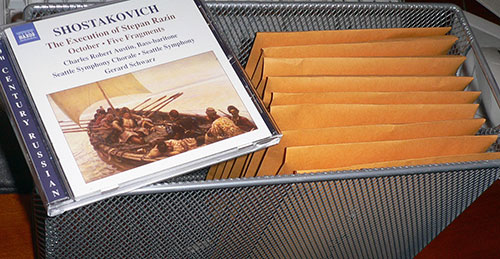
The simplest form of filing is a chronological file. You don’t even need file folders — I just toss my mail in a letter tray after I scan it. At the end of each month, I dump the accumulated mail into a 6″x9″ clasp envelope (depending on how much mail you receive, you may need bigger envelopes), and label it with the year and month. In all likelihood, you will never access these documents again, so there is no point in arranging them more finely than that. This filing arrangement takes next to no effort and is very compact – you can keep a year’s worth in the same space as a half dozen suspended file folders, as can be seen with 9 months’ worth of mail in the photo below (the CD jewel case is for scale).
Monthly filesThere are some sensitive documents you should still file the old-fashioned way for legal reasons, such as birth certificates, diplomas, property titles, tax returns and so on. You should still scan them to have a backup in case of fire.

Date stamping

As you may have to retrieve the paper original for a scanned document, is important to date stamp every page (or at least the first page) of any mail you receive. I use a Dymo Datemark, a Rube Goldberg-esque contraption that has a rubber ribbon with embossed characters running around an ink roller and a small moving hammer that strikes when the right numeral passes by. All you really need is a month resolution so you know which envelope to fetch, thus an ordinary month-year rubber stamp would do as well. Ideally you would have software to insert a digital date stamp directly in the document, but I have not found any yet. A tip: stamp your document diagonally so the time stamp stands out from the horizontal text.

Management

Much as it pains me to admit it, Adobe Acrobat (supplied with the Fujitsu ScanSnap) is the most straightforward way to manage PDF files on Windows, e.g. merge multiple files together, insert new pages, annotate documents and so on. Through web capture OCR, it can create an invisible text layer that makes the PDF searchable with Spotlight. There are alternatives, such as Foxit PDF Page Organizer or PaperPort on Windows, and PDFPen on OS X. Since Leopard, Apple’s Preview app has included most of the PDF editing functionality required, so I take great pains to ensure my Macs are untainted by Acrobat (e.g. unselecting it when installing CS3). See also my article on resetting the creator code for PDF files on OS X so they are opened by Preview for viewing.

Encryption

If you are storing a backup of your personal papers at work or on a public service like Google’s rumored Gdrive, you don’t want third-parties to access your confidential information. Similarly, you don’t want to be exposed to identity theft if you lose a USB Flash stick with the data on it. The solution is simple: encryption.

There are many encryption packages available. Most probably have back doors for the NSA, but your threat model is the ID fraudster rummaging through your trash for backup DVDs or discarded bank statements, not the government. I use OpenSSL’s built-in encryption utility as it is cross-platform and easily scripted (I compiled a Windows executable for myself, and it is small enough to be stored on a Flash card). Mac and UNIX computers have it preinstalled, of course, do man enc for more details.

To encrypt a file using 256-bit AES, you would use the command:

openssl enc -aes-256-cbc -in somefile.pdf -out somefile.pdf.aes

to decrypt it, you would issue the command:

openssl enc -d -aes-256-cbc -in somefile.pdf.aes -out somefile.pdf

OpenSSL will prompt you for the password, but you can also supply it as a command-line argument, e.g. in a script.

Backup

Backing up scanned documents is no different than backing up photos (apart from the encryption requirements), so I will just link to my previous essay on the subject or my current backup scheme. In addition to my external Firewire hard drive rotation scheme, I have a script that does an incremental encryption of modified files using OpenSSL, and then uploads the encrypted files to my office computer using rsync.

Retention period

I tend to agree with Tim Bray in that you shouldn’t bother erasing old files, as the minimal disk space savings are not worth the risk of making a mistake. As for paper documents, you should ask your accountant what retention policy you should adopt, but a default of 2 years should be sufficient (the documents that need more, such as tax returns, are in the “file traditionally” category, in any case).

Fax

The original question was about fax. OS X can be configured to receive faxes on a modem and email them to you as PDF attachments, at which point you can edit them in Acrobat, and fax it back if required, without ever having to kill a tree with printouts. Windows has similar functionality. Of course, fax belongs in the dust-heap of history, along with clay tablets, but habits change surprisingly slowly.

Update (2006-08-26):

I recently upgraded my shredder to a Staples SPL-770M micro-cut shredder. The particles generated by the shredder are incredibly minute, much smaller than those of conventional home or office grade shredders, and it is also very quiet to boot.

Unfortunately, it isn’t able to shred an entire unopened junk mail envelope, and the micro-cut shredding action does not work very well if you feed it folded paper (the particles at the fold tend to cling as if knitted together). This unit is also more expensive than conventional shredders (but significantly cheaper than near mil-spec DIN level 5 shredders that are the nearest equivalent). Staples regularly has specials on them, however. Highly recommended.

Update (2007-04-12):

I recently upgraded my document scanner to a Fujitsu fi-5120C. The ScanSnap has a relatively poor paper feed mechanism, which often jams or double-feeds. Many reviews of the new S500M complain it also sufffers from double-feeding. The 5120C is significantly more expensive but it has a much more reliable paper feed with hitherto high-end features like ultrasonic double-feed detection. You do need to buy ScanTango software to run it on the Mac, however.

Update (2009-01-21):

I moved recently, and realized I have never yet had to open one of those envelopes. From now on, all papers not required for legal reasons (e.g. tax documents) go straight to the shredder after scanning.

Update (2009-09-08):

The new ScanSnap 1500 has ultrasonic double-feed detection. I bought a copy of ABBYY FineReader Express for the Mac. It used to be only available as bundled software with certain scanners like recent ScanSnaps, or software packages like DEVONthink, but you can now buy it as a standalone utility. It is not full-featured, missing some of the more esoteric OCR functionality of the Windows version, batch capabilities and scripting, but works well, unlike the crash-prone ReadIRIS I had but seldom used.

Update (2009-09-22):

Xamance is a really interesting French startup. Their product, the Xambox, integrates a document scanner, document management software and a physical paper filing system. The system can tell you exactly where to find the paper original for a scanned document (“use box 2, third document after tab 7”). In other words, essentially the same filing system I suggest above, but systematically managed in a database for easy retrieval.

It is quite expensive, however, making it more of a solution for businesses. I have moved on and no longer need the safety blanket of keeping the originals, but I can easily see how a complete solution like this would be valuable for businesses that are required for compliance to keep originals, such as notaries, or even government public records offices.

Credit card receipt slips and business cards are problematic for a paperless workflow. They are prone to jam in scanners, have non-standard layouts so hunting for information takes more time than it should, and are usually so trivial you don’t really feel they are worth scanning in the first place. I just subscribed to the Shoeboxed service to manage mine.They take care of the scanning and for pouring the resulting data in a form that can be directly imported into personal finance or contact-management software. I don’t yet have sufficient experience with the service, but on paper at least it seems like a valuable service that will easily save me an hour a week.

Update (2011-01-13):

I finally broke down and upgraded to a ScanSnap S1500M (we have one at work, and it is indeed a major improvement over the older models). In theory this is a downgrade as the fi-5120C is a business scanner, whereas the S1500M is a consumer/SoHo model, but with some simple customization, the integrated software bundle makes for a much more streamlined workflow: put the paper in the hopper, press the button, that’s it. With the fi-5120C, I had to select the scan settings in ScanTango, scan, press the close button, select a filename, drag the file into ABBYY FineReader, select OCR options, click save, click to confirm I do want to overwrite the original file, then dismiss the scan detection window. One step vs. nine.

Update (2012-06-19):

For portable storage of the documents, I don’t bother with manually encrypting the files any more. The IronKey S200 is a far superior option: mil-spec security and hardware encryption, with tamper-resistant circuitry, potted for environment resistance and using SLC flash memory for speed. Sure, it’s expensive, but you get what you pay for (I tried to cut costs by getting the MLC D200, and ended up returning it because it is so slow as to be unusable).
Trimming the fat from JPEGs

I use Adobe Photoshop CS2 on my Mac as my primary photo editor. Adobe recently announced that the Intel native port of Photoshop would have to wait for the next release CS3, tentatively scheduled for Spring 2007. This ridiculously long delay is a serious sticking point for Photoshop users, specially those who jumped on the MacBook Pro to finally get an Apple laptop with decent performance, as Photoshop under Rosetta emulation will run at G4 speeds or lower on the new machines.

This nonchalance is not a very smart move on Adobe’s part, as it will certainly drive many to explore Apple’s Aperture as an alternative, or be more receptive to newcomers like LightZone. I know Aperture and Photoshop are not fully equivalent, but Aperture does take care of a significant proportion of a digital photographer’s needs, and combined with Apple’s recent $200 price reduction for release 1.1, and their liberal license terms (you can install it on multiple machines as long as you are the only user of those copies, so you only need to buy a single license even if like me you have both a desktop and a laptop).

There is a disaffection for Adobe among artists of late. Their anti-competitive merger with Macromedia is leading to complacency. Adobe’s CEO, Bruce Chizen, is also emphasizing corporate customers for the bloatware that is Acrobat as the focus for Adobe, and the demotion of graphics apps shows. Recent releases of Photoshop have been rather ho-hum, and it is starting to accrete the same kind of cruft as Acrobat (to paraphrase Borges, each release of it makes you regret the previous one). Hopefully Thomas Knoll can staunch this worrisome trend.

Adobe is touting its XMP metadata platform. XMP is derived from the obnoxious RDF format, a solution in search of a problem if there ever was one. RDF files are as far from human-readable as a XML-based format can get, and introduce considerable bloat. If Atom people had not taken the RDF cruft out of their syndication format, I would refuse to use it.

I always scan slides and negatives at maximal bit depth and resolution, back up the raw scans to a 1TB external disk array, then apply tonal corrections and spot dust. One bizarre side-effect of XMP is that if I take a 16-bit TIFF straight from the slide scanner, then apply curves and reduce it to 8 bits, somewhere in the XMP metadata that Photoshop “helpfully” embedded in the TIFF the bit depth is not updated and Bridge incorrectly shows the file as being 16-bit. The only way to find out is to open it (Photoshop will show the correct bit depth in the title bar) or look at the file size.

This bug is incredibly annoying, and the only work-around I have found so far is to run ImageMagick‘s convert utility with the -strip option to remove the offending XMP metadata. I did not pay the princely price for the full version of Photoshop to be required to use open-source software as a stop-gap in my workflow.

Photoshop will embed XMP metadata and other cruft in JPEG files if you use the “Save As…” command. In Photoshop 7, all that extra baggage actually triggered a bug in IE that would break its ability to display images. You have to use the “Save for Web…” command (actually a part of ImageReady) to save files in a usable form. Another example of poor fit-and-finish in Adobe’s software: “Save for Web” will not automatically convert images in AdobeRGB or other color profiles to the Web’s implied sRGB, so if you forget to do that as a previous step, the colors in the resulting image will be off.

“Save for Web” will also strip EXIF tags that are unnecessary baggage for web graphics (and can actually be a privacy threat). While researching the Fotonotes image annotation scheme, I opened one of my “Save for Web” JPEGs under a hex editor, and I was surprised to see literal strings like “Ducky” and “Adobe” (apparently the ImageReady developers have an obsession with rubber duckies). Photoshop is clearly still embedding some useless metadata in these files, even though it is not supposed to. The overhead corresponds to about 1-2%, which in most cases doesn’t require more disk space because files use entire disk blocks, whether they are fully filled or not, but this will lead to increased network bandwidth utilization because packets (which do not have the block size constraints of disks) will have to be bigger than necessary.

I wrote jpegstrip.c, a short C program to strip out Photoshop’s unnecessary tags, and other optional JPEG “markers” from JPEG files, like the optional “restart” markers that allow a JPEG decoder to recover if the data was corrupted — it’s not really a file format’s job to mitigate corruption, more TCP’s or the filesystem’s. The Independent JPEG Group’s jpegtran -copy none actually increased the size of the test file I gave it, so it wasn’t going to cut it. jpegstrip is crude and probably breaks in a number of situations (it is the result of a couple of hours’ hacking and reading the bare minimum of the JPEG specification required to get it working). The user interface is also pretty crude: it takes an input file over standard input, spits out the stripped JPEG over standard output and diagnostics on standard error (configurable at compile time).

ormag ~/Projects/jpegstrip>gcc -O3 -Wall -o jpegstrip jpegstrip.c
ormag ~/Projects/jpegstrip>./jpegstrip < test.jpg > test_strip.jpg
in=2822 bytes, skipped=35 bytes, out=2787 bytes, saved 1.24%
ormag ~/Projects/jpegstrip>jpegtran -copy none test.jpg > test_jpegtran.jpg
ormag ~/Projects/jpegstrip>jpegtran -restart 1 test.jpg > test_restart.jpg
ormag ~/Projects/jpegstrip>gcc -O3 -Wall -DDEBUG=2 -o jpegstrip jpegstrip.c
ormag ~/Projects/jpegstrip>./jpegstrip < test_restart.jpg > test_restrip.jpg
skipped marker 0xffdd (4 bytes)
skipped restart marker 0xffd0 (2 bytes)
skipped restart marker 0xffd1 (2 bytes)
skipped restart marker 0xffd2 (2 bytes)
skipped restart marker 0xffd3 (2 bytes)
skipped restart marker 0xffd4 (2 bytes)
skipped restart marker 0xffd5 (2 bytes)
skipped restart marker 0xffd6 (2 bytes)
skipped restart marker 0xffd7 (2 bytes)
skipped restart marker 0xffd0 (2 bytes)
in=3168 bytes, skipped=24 bytes, out=3144 bytes, saved 0.76%
ormag ~/Projects/jpegstrip>ls -l *.jpg
-rw-r--r--   1 majid  majid  2822 Apr 22 23:17 test.jpg
-rw-r--r--   1 majid  majid  3131 Apr 22 23:26 test_jpegtran.jpg
-rw-r--r--   1 majid  majid  3168 Apr 22 23:26 test_restart.jpg
-rw-r--r--   1 majid  majid  3144 Apr 22 23:27 test_restrip.jpg
-rw-r--r--   1 majid  majid  2787 Apr 22 23:26 test_strip.jpg

Update (2006-04-24):

Reader “Kam” reports jhead offers JPEG stripping with the -purejpg option, and much much more. Jhead offers an option to strip mostly useless preview thumbnails, but it does not strip out restart markers.